


Meta Business Suite is Meta's free tool for running a Facebook Page and a linked Instagram account from one place: you plan and schedule posts, answer messages and comments in one inbox, set automated replies, check insights and create simple ads. It works in a desktop browser and as a mobile app. Most small businesses open it occasionally and use only the scheduler. This Meta Business Suite guide goes further: it explains what each area is for, how it differs from Business Manager, which settings and automations are worth turning on, what to check in insights, and how to turn it all into a weekly routine a small team can actually follow. Menu names change often, so treat the labels here as accurate at the time of writing.
What is Meta Business Suite, and who should use it?
It is the day-to-day workspace for Meta's business tools. Anyone who manages a Facebook Page, with or without an Instagram professional account, can use it, and it is especially useful when two or three people share the work. Instead of switching between the Facebook app, the Instagram app and personal phones, the team sees the same calendar, the same inbox and the same numbers.
It suits shops, clinics, salons, coaching classes, restaurants and service businesses that post regularly and get enquiries through Messenger, Instagram DMs and comments. Larger advertisers still use Ads Manager for campaigns and Business Settings for permissions, but even they usually rely on Business Suite's inbox for customer conversations, because it keeps Facebook and Instagram messages in one queue.
How is Meta Business Suite different from Business Manager?
Business Suite is where you do the work; Business Manager, now usually called a business portfolio with its Business Settings, is where you control ownership and access. Business Settings decides who owns the Page, the ad account, the Instagram account, the pixel and the catalogue, and which people or agencies can use them. Business Suite then lets those people post, reply and review results.
Meta has been folding the two closer together, so you may reach settings from inside Business Suite. The distinction still matters: if your Page sits outside any business portfolio, or only an ex-employee holds admin rights, Business Suite cannot fix that. Our Meta Business Manager setup guide walks through getting ownership right before you build a routine on top.
How do you get started in Meta Business Suite?
Open Business Suite in a desktop browser from the Facebook menu or install the Meta Business Suite app, then choose the Page you manage. Check that your Instagram professional account is connected; if not, connect it from the settings area so posts, messages and insights from both appear together. If you manage several Pages, use the account switcher at the top to make sure you are working in the right one.
Next, review who has access and at what level, switch on inbox notifications on the phones of the people who answer messages, and confirm the time zone is set to India so scheduled posts go out when you expect. Take ten minutes to explore each menu item. It is much easier to set up good habits on day one than to clean up a messy inbox later.
Check these on day one:

How do you plan and schedule posts in the Planner?
Create a post, choose whether it goes to Facebook, Instagram or both, add media and a caption, then pick a date and time instead of publishing. You can customise the caption for each platform, which is worth doing because Instagram captions often invite a DM while Facebook captions can carry a phone number or link. Stories and Reels can also be scheduled, though options for each format change, so check before planning around them.
Use the calendar view in the Planner to see the whole month at a glance and spot gaps, clusters of offers or weeks with no video. Save drafts for posts waiting on approval. Batch the work: one sitting to write and schedule a week or two of posts saves far more time than posting daily. Our social media content calendar guide shows how to plan themes before you open the Planner.
How do you manage the Inbox so no enquiry is missed?
The Inbox collects Messenger chats, Instagram DMs and comments from both platforms in one place, with filters for unread, follow-up and done. Use labels to track where each conversation stands, for example New enquiry, Price shared, Booked and Not a fit. Saved replies handle common questions, such as timings, location and fees, in two taps while still letting you personalise the answer.
If more than one person answers, assign conversations so two people do not reply to the same customer, and mark chats as done once resolved. Move serious buyers to WhatsApp or a call when that is how you close, and note it in the label. Check the Inbox at fixed times, such as late morning and early evening, and answer comments as carefully as DMs, because public replies are read by everyone browsing the post.
FAQs: How do you manage the Inbox so no enquiry is missed?
Can several team members reply from the same inbox?
Yes. Anyone with the right access to the Page can reply from the shared Inbox. Assigning conversations and using labels prevents double replies and lost enquiries.
Does the Business Suite inbox include WhatsApp?
In some regions and setups, a connected WhatsApp Business account can appear in the Inbox, but availability varies. Many Indian businesses still handle WhatsApp in the WhatsApp Business app or an API tool.
Which Business Suite automations are worth setting up?
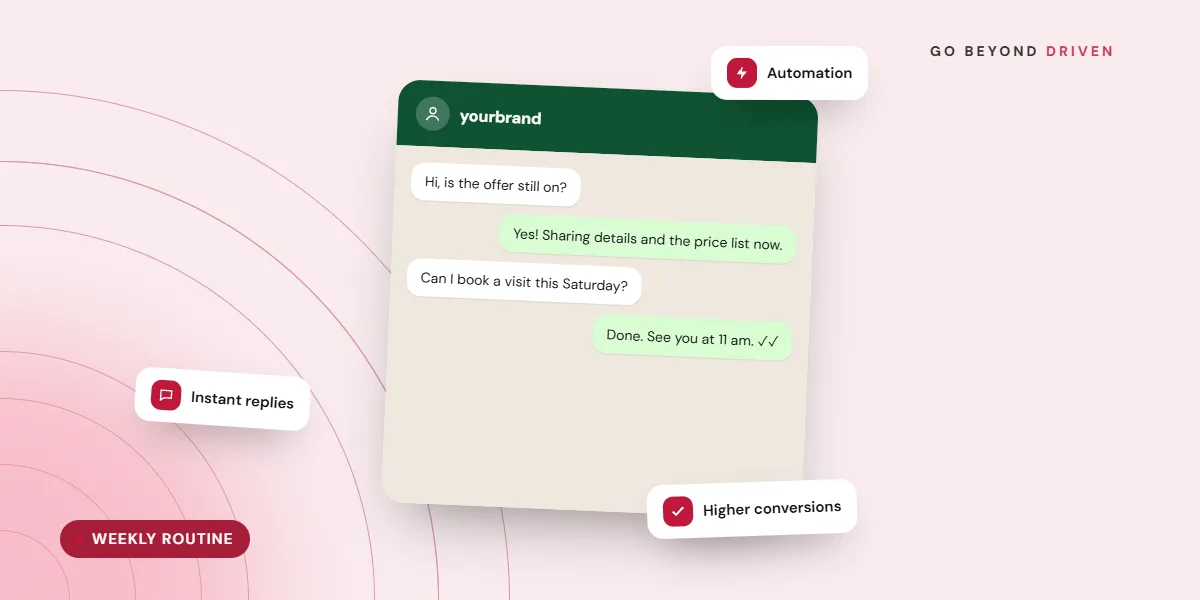
Start with three. An instant reply that greets new messages, sets expectations on reply time and shares your WhatsApp number. An away message for nights and holidays, so nobody feels ignored. Frequently asked questions, which show tappable questions such as 'What are your fees?' when someone opens a chat, each with a short answer. Together they cut repetitive typing without pretending to be a full chatbot.
Keyword-based replies and comment automations are also available in some form, at the time of writing, and can send details when someone types a word like PRICE. Use them carefully, keep answers short and always offer a human. For more advanced flows, see our guides to Messenger marketing and Instagram DM automation, which cover rules and tools beyond Business Suite.
Automations most businesses should switch on:
What should you check in Business Suite insights each week?
Look at four things: how many people your content reached or how many views it got, which posts drew the most interactions and shares, how many new conversations started, and whether followers grew or fell. Meta reorganises insights and renames metrics fairly often, so focus on the questions rather than exact labels. Compare this week with the last four weeks, not with a single good day.
Then look at the content list sorted by reach or interactions and note what the top three posts have in common: format, topic, language or the people in them. Audience details, such as cities and age bands, help you check that you are reaching your actual market, for example Mumbai and Thane rather than all of India. Write down one change to try next week.
Should you boost posts from Business Suite?
Boosting from Business Suite is quick but limited. It suits simple goals such as getting more people in your area to see an event post or a new-branch announcement. You choose a goal, an audience, a budget and duration, and Meta handles the rest. For anything where cost per enquiry or sale matters, Ads Manager gives far more control over objectives, placements, creative testing and tracking.
A sensible rule: boost only posts that already performed well organically, aim them at a defined area and age range, and set a small fixed budget. Judge the boost on messages or calls it produced, not on likes. If you find yourself boosting every week, it is time to plan proper campaigns, because repeated boosts without tracking usually buy attention rather than customers.
Worked example: a weekly Business Suite routine for a gym in Powai
Say a gym in Powai has one manager and one trainer who handle social media between sessions. This is a hypothetical example to show the method. On Monday morning, the manager spends 45 minutes in the Planner scheduling the week: two Reels of trainers demonstrating exercises, one member story shared with consent, one class timetable and one trial offer, customised for Facebook and Instagram.
Each day at noon and 7 pm, the trainer clears the Inbox, labels each chat as Trial enquiry, Membership question or Other, uses saved replies for fees and timings, and moves trial bookings to WhatsApp. On Friday, the manager spends 20 minutes in insights, notes the best post and the number of trial enquiries labelled that week, and picks one change for next week, such as more Hindi captions or an earlier posting time.
When does it make sense to get help with Business Suite?
Business Suite is simple enough to learn in a day. Help is worth it when nobody has time to plan and create content each week, when enquiries pile up unanswered, when you manage several Pages or branches, or when insights show reach but no enquiries and you are not sure why. A clean setup, sensible labels and a realistic routine usually matter more than any single feature.
Go Beyond Driven sets up Business Suite and business portfolios properly, builds the content calendar, writes saved replies and automations, and reports on enquiries rather than likes. Our social media marketing agency team can run the whole routine for you, or train your staff and step in only for content and monthly reviews.
Final thoughts
This Meta Business Suite guide comes down to three habits: plan and schedule in one weekly sitting, clear one shared inbox at fixed times with labels, and review insights every Friday with one change to try. Get ownership right first, switch on the basic automations and keep humans in the loop. If you want help setting up a routine that brings enquiries, book a free marketing audit with Go Beyond Driven, or call or WhatsApp +91 91378 79539.


